
Excel’s text functions are your secret weapons for quickly extracting, combining, and cleaning up data. This guide covers the essentials: LEFT, RIGHT, MID, and CONCAT.
LEFT pulls a specified number of characters from the beginning of a text string. For example, if cell A1 contains the word “apple”, =LEFT(A1, 3) returns “app”.
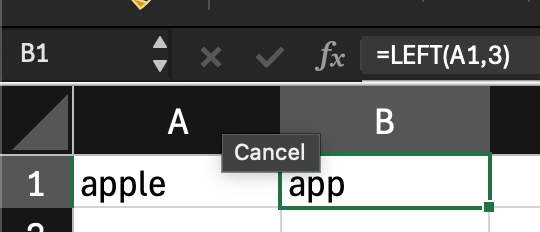
The LEFT command takes 2 arguments, the cell you want to collect characters from, and the number of characters you want to collect starting from the left-most side
RIGHT extracts a specified number of characters from the end of a text string. For example, if cell A1 contains the word “banana”, =RIGHT(A1, 3) returns “ana”.
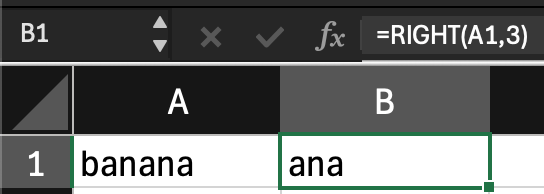
The RIGHT command takes 2 arguments, the cell you want to collect characters from, and the number of characters you want to collect starting from the right-most side.
MID retrieves characters from the middle of a text string, starting at a specified position. For instance, if cell A1 contains the word “orange”, =MID(A1, 2, 3) returns “ran”.
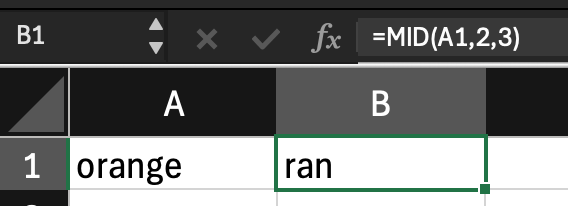
The MID command takes 3 arguments, the cell you want to collect characters from, the character you want to start collecting with, and the character you want to stop collecting with.
Finally, CONCAT merges multiple text strings together. if A1 contains the word “Hello” and A2 contains the word “World!”, =CONCAT(A1, " ", B2) produces the output “Hello World!”.

Real-World Application:
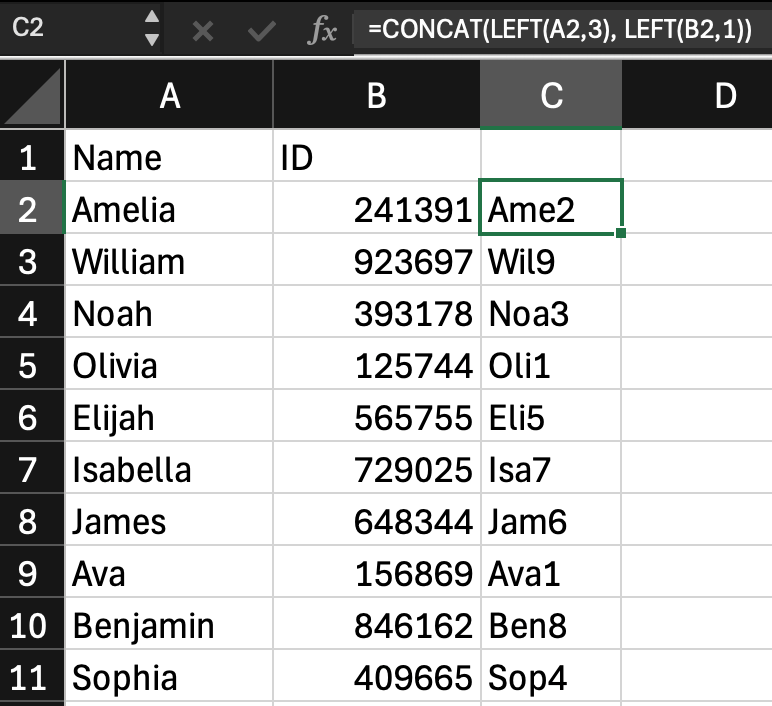
Imagine you have a list of employee names (column A) and their IDs (column B). Your goal is to create a new column (C) containing unique codes: the first digit of the ID plus the first three letters of the name. The formula =CONCAT(LEFT(A2, 3), LEFT(B2, 1)) does exactly that. Simply drag it down column C to auto-generate codes for every employee.
Conclusion
Mastering Excel’s text functions empowers you to efficiently manipulate data, automate repetitive tasks, and gain deeper insights. Experiment with these powerful tools to streamline your workflow and unlock the full potential of your spreadsheets.

 Speed Up Work
Leave a comment