
Introduction:
Ever needed to make a decision in Excel based on multiple conditions? Maybe you want to identify students who passed both their exams, or filter products that meet both a price and quality threshold. That’s where Excel’s AND function swoops in to save the day. This handy logical function acts like a gatekeeper, only letting through data that meets all your criteria. In this guide, we’ll break down how AND works and how to use it to streamline your data analysis.
Understanding the AND Function
Think of AND like a strict bouncer at an exclusive club. To get in, you need to meet all the requirements – the right outfit, the right guest list, maybe even the right attitude. Similarly, in Excel, the AND function checks multiple logical conditions, and if every single one is TRUE, it returns TRUE. If even one condition is FALSE, the whole AND function returns FALSE.
The Syntax:
Excel
=AND(logical1, [logical2], ...)logical1: The first condition you want to test.[logical2], ...: Optional additional conditions (you can have up to 255!).
Example: Passing Grades
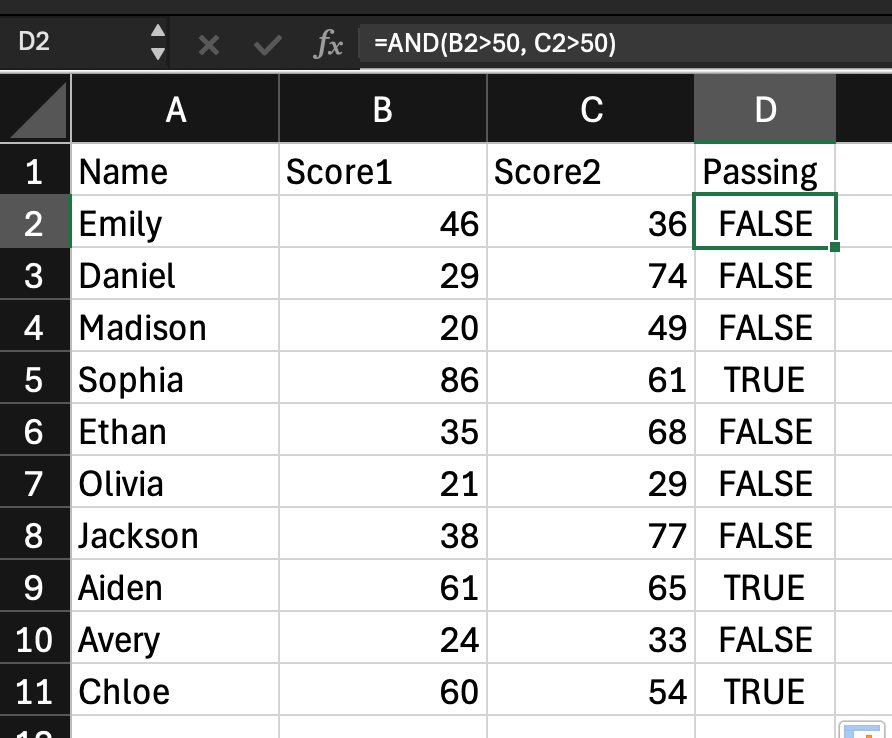
Let’s look at our example spreadsheet. We want to determine which students passed by checking if their scores in both Score1 (column B) and Score2 (column C) are above 50.
In cell D2, we can use the AND function like this:
Excel
=AND(B2>50, C2>50) Use code
This formula checks if the value in B2 is greater than 50 AND the value in C2 is greater than 50. If both are true, it returns TRUE (or in this case, “Passing”). If either score is below 50, it returns FALSE (or “Failing”). You can then copy this formula down the column to evaluate each student’s performance.
Beyond Pass/Fail: Expanding AND’s Power
The AND function isn’t limited to simple pass/fail scenarios. You can use it for complex data filtering, decision-making, and even nested formulas. For instance, you could combine AND with other functions like IF to create conditional actions based on multiple criteria.
Conclusion
The AND function is a versatile tool in your Excel arsenal. By mastering its logic, you can easily filter data, make informed decisions, and automate complex tasks. So next time you need to evaluate multiple conditions in your spreadsheets, remember the trusty AND function – your data analysis gatekeeper.

 Speed Up Work
Leave a comment